

Skip to content
Information for farmers, fisherfolk & agriculture offices PAGASA weather advisories
LGU Agriculture
Information & GIS System

Farmer services & records

Mas malapit ang serbisyo sa magsasaka.

Find local agriculture services, view your farm records, and get ready for your next office visit.

Need help signing in? Contact your agriculture office for help with your farmer ID or password.

Before you head to the field

Make the weather part of your plan.

Check official forecasts and advisories before planting, harvesting, or going out to sea.

Check PAGASA

What do you need help with?

Your local agriculture office is your starting point. Choose a service to see what to discuss with the staff.

Farmer registrationProfiles, RSBSA details & record updates

Ask the agriculture office to check your farmer profile, registered farm details, and RSBSA information. Tell the staff if your contact details or farming activities have changed.

Registration and corrections are handled by the office. There is no public account registration on this site.

Prepare for your office visit
Seeds & farm inputsRice, corn, vegetables & other crop support

Ask about seed, fertilizer, and other farm-input assistance for your crop and planting season. Staff can explain the requirements, schedules, and releases recorded for your farm.

Availability and eligibility depend on the program and your local office. This page does not accept applications.

Prepare for your office visit
Fisheries assistanceFingerlings, feed & fishing equipment

Discuss your fishing or aquaculture activity with the agriculture office. Ask which fisheries programs are available, what documentation is needed, and where to get technical guidance.

View fisheries resources
Animal-health servicesVaccination, deworming & treatment

Contact your agriculture or veterinary office about service schedules for livestock, poultry, and pets. Have the animal species, number of animals, and previous service information ready.

For a sick animal, contact veterinary staff directly for assessment.

Plan your office visit
Farm records & parcel mappingFarm location, mapped parcels & registry cards

Ask staff to review your farm location and recorded parcels. If you have a local farmer registry card, its QR code opens the associated public land-information page.

A mapped parcel or registry card is not proof of land ownership or a cadastral survey.

Prepare your farm information
Cooperatives & machineryFarmer groups & equipment inquiries

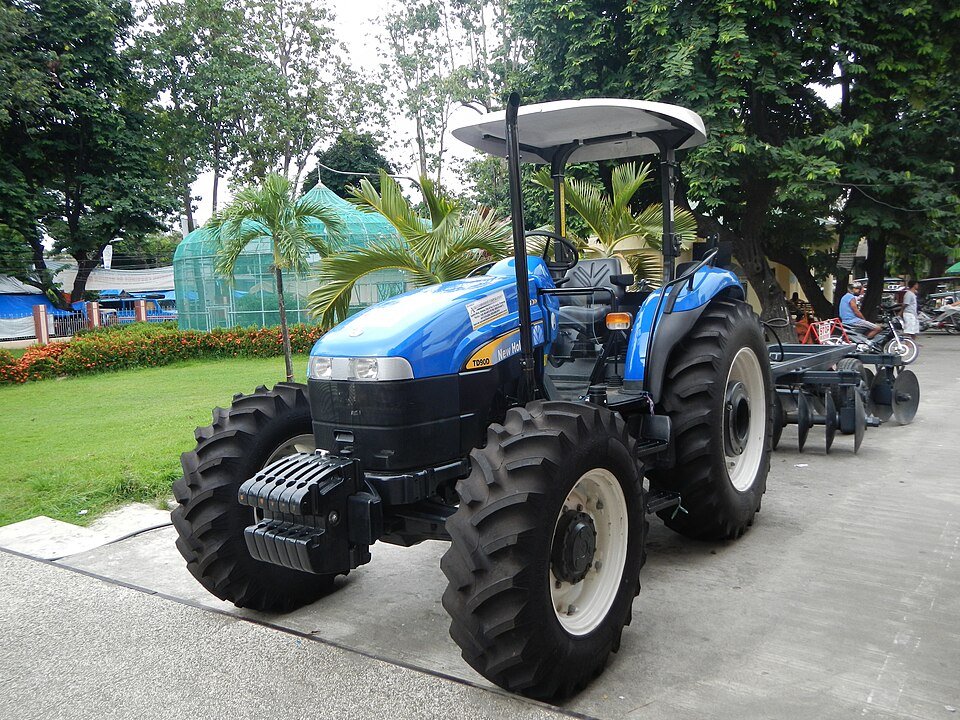
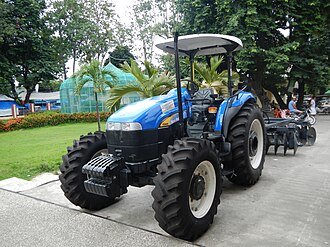
Ask about cooperative membership records and agricultural machinery managed through your local office. Staff can explain equipment availability and the applicable arrangements.

This website does not provide public machinery bookings.

Plan your office visit

Services are coordinated by the responsible local office. Confirm current requirements and schedules before travelling.

One workspace.
For farmers
and their offices.

Explore the full system, from farmer records and field maps to office services, climate evidence and LGU websites.

Enter your office workspace

Explore by workflow

Your role and assigned area determine which tools and records you can use. Expand a feature below to see what it includes.

Farmers & their records

From the first registry entry to a farmer checking their own records.

Farmer registryOne place for identity, farm and service information.
  • Maintain farmer profiles, photographs, RSBSA and FFRS references, farm details and sector classifications.
  • Find farmers by name or registry ID, filter records and review their linked parcels and services.
  • Retain approved imported source rows alongside the farmer profile for office reference.
Digital IDs & QR parcel pagesAn LGU-issued registry card, on screen or in print.
  • Preview both sides, enlarge the QR code, print the card or download a PNG with the issuing LGU logo and office details.
  • Include farmer and registry references, recorded farm information and printed signature lines.
  • Scan the QR to open a limited public parcel map. The card is a local registry card, not a national government ID or proof of land ownership.
Farmer self-service portalA private view of the farmer’s own information.
  • Use a separate farmer sign-in issued by authorized agriculture staff after identity verification.
  • View the farmer profile, all owned parcel boundaries, selected-year seasonal crops, assistance and harvest history.
  • View records without changing office data; ask authorized staff for registry corrections or help recovering access.
Record quality & duplicate reviewKeep incomplete and conflicting information visible.
  • Review missing registry references, farm locations and unmapped farmers through office attention lists.
  • Match approved imports within the correct municipality and flag ambiguous or duplicate records for review.
  • Keep related farmers, parcels, releases and memberships in the same LGU, with checks before protected records can be removed.

Land, crops & maps

Connect farmer records with mapped parcels, seasons and local boundaries.

GIS parcel workspaceLocate farms and work with their boundaries.
  • Draw, edit or import parcel boundaries, calculate mapped area and keep parcels linked to their farmer.
  • Search locations, focus or hide parcels, use satellite and hybrid views, toggle map labels and review parcel details.
  • Import supported KML, KMZ and XML files, with boundary and ownership validation.
Seasonal crops & planted sectionsSee the recorded crop for each year and season.
  • Record crops by year and dry or wet season, either for a whole parcel or within drawn crop sections.
  • Use crop colors, icons, filters and farmer land/crop charts to review rice, corn and other recorded crops.
  • Record a harvest against an eligible saved crop section. A crop color alone does not measure planted area or production.
Municipality & barangay referencesReview farms in their local planning context.
  • View active municipality boundaries and available barangay reference layers within the account’s area.
  • Review parcels outside, crossing or near a municipality boundary, including records needing geometry checks.
  • Authorized administrators can draw, import, version, activate and archive geofences. Reference boundaries are for planning, not cadastral surveys.
Parcel sheets & land snapshotsBring map information into office reports.
  • Print parcel sheets and download high-resolution satellite map PNGs with parcel information.
  • Download scoped municipality land snapshots showing the boundary and mapped parcels.
  • Keep map frames aligned with the current boundaries and show a useful failure message when imagery is unavailable.

Weather & field decisions

Bring dated observations and field evidence together for staff review.

Satellite field checksReview vegetation and moisture indicators.
  • Request a parcel check using NDVI, NDMI, SAVI or EVI, with a map, legend and dated measurements for the selected index.
  • Review available observation dates, natural-color comparisons, index guides and completed satellite history alongside the parcel.
  • Cloud cover, resolution and missing observations remain visible. An index alone does not diagnose drought or crop damage.
El Niño readinessTrack office priorities and reported affected parcels.
  • Review municipality and available barangay risk maps with rainfall evidence, saved NDVI readings and reported affected parcels.
  • Authorized staff record Normal, Watch, Alert or Critical assessments with supporting evidence and review dates.
  • Missing or expired assessments stay Not assessed. Weather and satellite readings do not automatically declare a disaster.
Crop guidance & field visitsCompare evidence, record observations and follow up.
  • Record dated parcel visits, crop stage, observed condition, verified water supply and available soil or slope evidence.
  • Compare Rice, Corn and Mungbean reference requirements with the same field evidence, keeping sources and unknown values visible.
  • Review crop-stress prompts and satellite trends, schedule a next visit and retain completed follow-up history. These comparisons support review rather than prescribe planting.
Weather & rainfall evidencePlan around forecasts and official advisories.
  • Read municipality-level forecasts and agriculture guidance, with direct links to official PAGASA bulletins.
  • Review dated Open-Meteo forecasts and CHIRPS recent-rainfall comparisons where source coverage is available.
  • Keep source dates and unavailable data visible. Municipality forecasts are not measurements taken on an individual farm.

Assistance & harvests

Follow recorded releases, their coverage and the production reported afterward.

Agriculture & fisheries assistanceRecord what was released, to whom and when.
  • Track rice, corn and other seeds, fertilizer and crop inputs, plus fingerlings, feed and fishing gear.
  • Record beneficiaries, program and item details, release dates, quantities and units within the responsible LGU.
  • Filter release histories and export scoped reports while keeping release counts, beneficiaries and quantities distinct.
Rice seed distribution sheetsOrganize seasonal releases in an editable sheet.
  • Prepare distribution batches with planting season and year, beneficiary rows, rice area, seed variety and bag weight.
  • Review supported NRP Excel imports and retain the applicable source details.
  • Record harvest season, area and production explicitly, with separate seed and harvest bag weights.
Harvests & productionKeep recorded output connected to its crop context.
  • Record supported direct harvests or release-linked rice harvests with farmer, year, season, commodity and unit.
  • Link eligible direct harvests to a saved parcel crop section and review crop-to-harvest records.
  • Compare production by municipality, commodity and unit. Missing entries remain distinct from recorded zero production.
Assistance coverage mapsSee where recorded support has reached.
  • Explore municipality assistance coverage by assistance type, program reference and recorded planting year or season.
  • Compare municipality release counts, distinct linked farmers and quantities by unit, with planting-year and season filters where recorded.
  • Keep municipalities without usable boundaries and incomplete records in the report. Coverage colors describe municipality releases, not individual parcel eligibility.

Everyday office work

Manage services, groups and equipment with reports that support follow-up.

Animal-health servicesRecord care for livestock, poultry and pets.
  • Record vaccination, deworming, vitamins or supplementation, and treatment by species and municipality.
  • Maintain owner or beneficiary details, service dates, animal counts and applicable service information.
  • Review filtered service records, monthly trends and species totals; veterinary accounts have dedicated Animal Health access.
Cooperatives & membershipsKeep farmer groups and their members connected.
  • Maintain cooperative profiles, office and contact information, and municipality-owned membership records.
  • Assign eligible farmers to a cooperative and review its member list.
  • Export a formatted member workbook and retain membership changes in the audit trail.
Machinery inventory & maintenanceKnow the equipment and what needs attention.
  • Maintain machinery asset codes, types, holders, condition and availability within each municipality.
  • Record acquisition details, service hours and maintenance dates, and review equipment needing service.
  • Filter inventory, export CSV reports and compare condition and availability by equipment type.
Dashboards & operational reportsStart with priorities, then open the detail.
  • Review registry and mapping coverage, annual assistance reach, animal services, cooperatives, machinery and recent activity.
  • Open attention lists for incomplete records, unmapped farmers and equipment needing maintenance.
  • Explore reporting-year trends and municipality comparisons with readable figures behind the charts, within the account’s assigned area.

Connected offices & guidance

Help staff find answers and let each LGU share approved public information.

Agriculture & system AssistantAsk for guidance in English or Filipino.
  • Ask about reviewed agriculture topics or system workflows, with sourced help and step-by-step numbered answers.
  • Find a farmer or request permitted summaries and reports through the office conversation; unrelated questions are declined.
  • Private record answers run locally within the user’s permissions. The Assistant cannot edit records, create accounts or approve requests.
LGU profiles & ID issuer settingsUse the correct office identity on farmer cards.
  • Authorized managers maintain the LGU logo, office name, approved contacts, website, address and location.
  • Set the optional printed office signatory and preview issuer details from Settings.
  • New card previews and exports use the saved issuing-office profile; previously printed cards retain their original details.
Public LGU websitesGive each participating office its own public page.
  • Prepare welcome text, services, announcements, office hours and a cover photo for an LGU website.
  • Preview content before publication, then list the published page in the public LGU directory.
  • Publish approved office information while keeping operational records private. Optional LGU subdomains require separate hosting setup.
Protected office filesKeep reference and backup files within office access.
  • Upload and organize permitted files in the municipality-owned Backup Folder.
  • Search files, preview supported documents and download originals according to the account’s permissions.
  • Retain authorized upload, download and removal activity. This file folder does not automatically schedule database backups.

Access, accountability & data

Support multiple offices with clear ownership and careful record handling.

Accounts & geographic accessGive each person the tools for their responsibility.
  • Support System Owners, Regional Heads, provincial administrators and staff, municipal heads and staff, and veterinary roles.
  • Manage accounts, active status and authorized assignments with region, province and municipality scope.
  • Provide restricted visitor and time-limited GIS evaluation access separately from staff and farmer identities.
Audit trail & accountabilityReview important actions in their office context.
  • Review sign-ins, supported record changes, exports and administrative actions with actor, date, module and geographic context.
  • Filter events, inspect available before-and-after values and download permitted audit CSV reports.
  • Keep audit visibility within the authorized oversight area and exclude credentials and protected values.
Privacy & shared editingProtect records while colleagues work together.
  • Keep personal records and files behind authorized sign-in, with limited public QR information.
  • Use sign-in attempt limits, inactivity expiry, an upcoming-session warning and account status checks.
  • Reject stale edits and duplicate submissions rather than silently replacing a colleague’s newer changes.
Imports, exports & service usageMove approved data and monitor shared services.
  • Use supported Excel and geographic-file imports, with validation and record matching for the relevant module.
  • Download permitted CSV and Excel reports, registry cards, parcel sheets and map images.
  • Authorized oversight accounts can review recorded satellite and static-map usage and system metrics. Local counters are not complete provider billing.
Find your next step

Farmers can open their own records. Office staff use their assigned workspace. Published LGU pages are open to everyone.

Department of Agriculture sealOfficial program informationDepartment of AgricultureVisit the DA website

Programs and learning,
straight from the source.

Go directly to the agencies behind the programs. These links open their official websites.

Department of Agriculture

Start with your
farmer registration.

The Registry System for Basic Sectors in Agriculture (RSBSA) helps identify farmers and fisherfolk for agricultural programs.

Ask your local agriculture office to check your registration and keep your information up to date.

Open DA’s RSBSA Finder

A little preparation
goes a long way.

Visit the agriculture office of the municipality where your farm or livelihood is registered. For animal-health concerns, ask for the responsible veterinary office.

Requirements vary by service. Confirm the office location, schedule, and required documents with your LGU before you go.

Have these details ready, if available

  • Your farmer information

    RSBSA number or farmer registry card, and your current contact details.

  • Your farm or livelihood details

    Barangay, municipality, crops or species, and the area or activity concerned.

  • Your previous assistance or service

    Relevant release slips, service records, or other documents related to your inquiry.

  • What you need help with

    The program, record correction, or service you would like to discuss.

Working at an agriculture office?

Sign in to manage your municipality’s records, services, and reports.

Open office sign in